How to Set Up Basic SEO for Your Website — A Beginner’s Checklist
SEO sounds complicated. People write entire books about it. Agencies charge thousands of pounds a month for it. So it is easy to assume that doing anything about SEO on your own is either too hard or not worth bothering with.
That is not quite right. The basics — the things that actually make the biggest difference when you are starting from zero — are not technical. Most of them take 10-30 minutes each. And doing them properly puts your website in a fundamentally better position than most small business websites, which have never been touched.
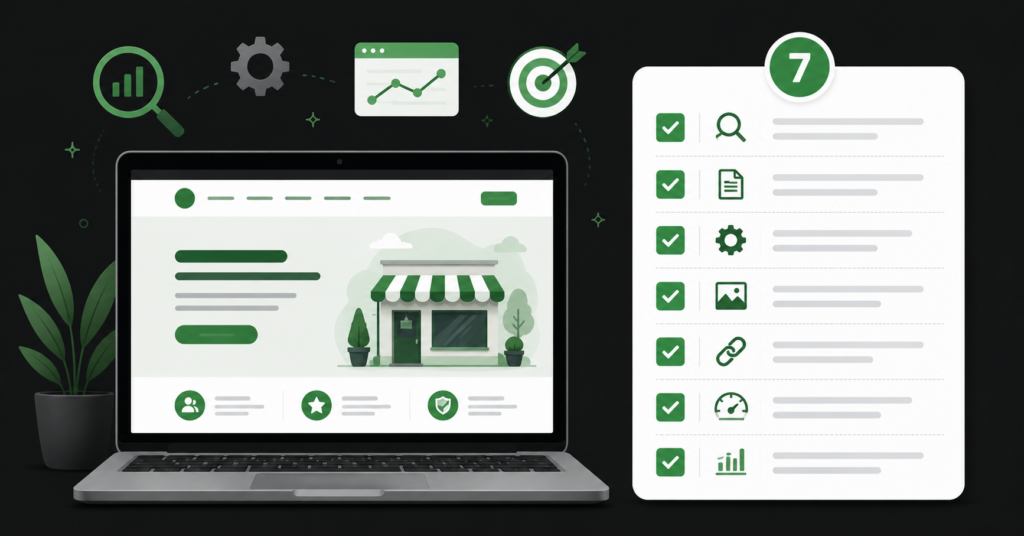
This guide covers exactly seven things. Not fifty. Not a comprehensive guide to every SEO concept in existence. Seven specific things you can do yourself this week, that will make your site more likely to show up when people search for what you sell.
| Before we start: This checklist is for getting the basics right — not for outranking national brands or dominating competitive markets. If your goal is “I want my business to show up when someone in my city searches for what I do,” this is the right place to start. |
First — What Is SEO, in One Paragraph
SEO stands for Search Engine Optimisation. It means: making your website easier for Google to understand, so Google can show it to people who are searching for what you offer. That is it. Everything else — keywords, meta tags, backlinks, site speed — is just a different piece of that same puzzle.
You do not need to understand all of it. You need to understand enough to get the basics right.
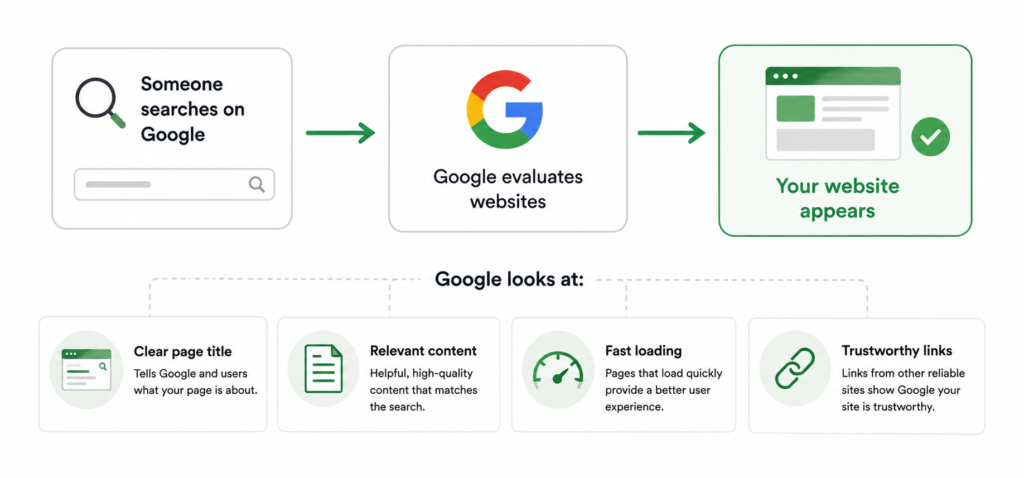
The 7-Step Basic SEO Checklist
Work through these in order. Each step builds on the previous one.
Step 1 — Connect Your Website to Google Search Console (free, 15 minutes)
Google Search Console is a free tool from Google. It tells you how your website is performing in search: which pages Google has found, what search queries people are using to find you, and whether there are any technical problems Google wants you to fix.
Without it, you are flying blind. With it, you have a direct line to Google’s own data about your site.
How to do it: Go to search.google.com/search-console. Sign in with your Google account. Add your website by entering the URL. Google will give you a small piece of code to paste into your website (or you can verify it through Google Analytics if you already use that). Once verified, Google will start showing you data within a few days.
| “This is the one tool you absolutely need before doing anything else. Everything else in this guide becomes more useful once you can see what Google is actually doing with your website.” |
Step 2 — Know What People Are Actually Searching For (30 minutes)
Before you write a single word or change anything on your website, you need to know what words your customers actually type into Google. This is called keyword research, and it does not need to be complicated.
Start by thinking from your customer’s point of view. If you run a florist in Bristol, your customers are not searching for “premium floral arrangement services.” They are searching for “florist Bristol,” “flower delivery Bristol,” “wedding flowers Bristol.” Simple, specific, local.
How to do it: Type your main service into Google and look at: (1) the autocomplete suggestions that appear as you type — these are real searches people make; (2) the “People also ask” box on the results page; (3) the “Related searches” at the bottom of the page. Write down every variation you see. These are the phrases you want your website to use naturally in its content.
Free tools that help: Google Keyword Planner (free with a Google Ads account), Ubersuggest (free tier), and Google Trends (completely free).
| ✓ Thinking like a customer “florist Bristol” / “flower delivery Bristol” / “wedding flowers Bristol near me” | ✗“premium floral arrangement and bespoke event floristry solutions” |
Step 3 — Fix Your Page Titles (30 minutes)
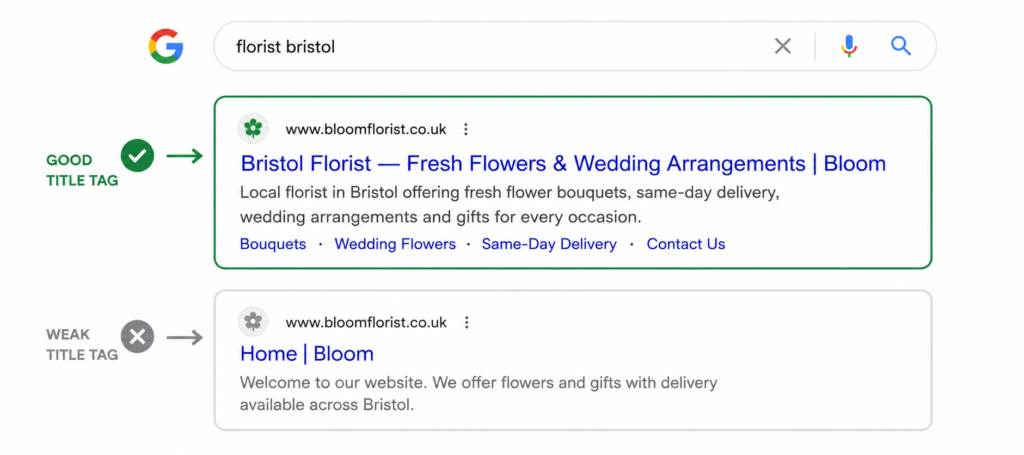
Every page on your website has a title. Not the big heading you see on the page itself — a separate, invisible title that Google reads and displays as the clickable link in search results. It is called the “title tag” and it is one of the most important signals Google uses to understand what your page is about.
Most small business websites have title tags like “Home,” “About Us,” or “Services.” These are almost useless for SEO. They tell Google nothing about what you actually do or where you are.
How to do it: For each main page, write a title that includes: (1) what the page is about, (2) your location if you are a local business, and (3) your business name. Keep it under 60 characters.
| ✓ Title tag — homepage Bristol Florist — Fresh Flowers & Wedding Arrangements | Bloom | ✗ Home | Bloom |
| ✓ Title tag — services page Wedding Flowers Bristol — Bouquets, Centrepieces & More | Bloom | ✗ Services | Bloom |
Where to change it: On WordPress: use the Yoast SEO or Rank Math plugin — they add a field for this below each page. On Shopify: go to the page, scroll down to “Search engine listing preview,” click Edit. On Squarespace: go to Pages > Settings > SEO.
Step 4 — Write a Meta Description for Each Main Page (20 minutes)
The meta description is the short paragraph of text that appears below the title in Google results. Google does not use it as a ranking signal (it does not help you rank higher), but it affects whether people click on your result. A well-written description can significantly increase the number of people who click through to your site.
How to do it: Write 1-2 sentences (under 155 characters) that describe what the page offers and include a reason to click. Think of it as a mini-advert for your page. Use the same tools as for title tags — Yoast, Rank Math, Shopify’s SEO field, etc.
| ✓ Meta description Fresh flowers delivered across Bristol. Bouquets, wedding arrangements, and same-day delivery available. Order by 2pm for next-day delivery. | ✗ Welcome to our website. We offer a range of services to meet your needs. |
Step 5 — Make Sure Each Main Page Has One Clear H1 Heading (15 minutes)
An H1 heading is the main title that appears on the page itself — the big text at the top that tells visitors (and Google) what the page is about. Every main page on your site should have exactly one H1, and it should clearly state what the page is.
Common problems: no H1 at all, multiple H1s on the same page, or an H1 that says something vague like “Welcome” or “Our Services” without saying what services or for whom.
How to do it: Open each main page on your website. Look at the biggest heading at the top. Does it clearly say what the page is about? Does it include your main keyword naturally? If not, rewrite it. On WordPress, the page title automatically becomes the H1. On Shopify, the product or page title is the H1.
| ✓ H1 heading Wedding Flowers in Bristol — Bouquets, Centrepieces & Styling | ✗ Welcome to Our Floral Services |
Step 6 — Add Alt Text to Your Images (20 minutes)
Alt text is a short description you add to every image on your website. It was originally created for accessibility — so that visually impaired users using screen readers could understand what an image shows. It also helps Google understand what is in your images, which contributes to your overall page relevance.
Most small business websites have images with either no alt text or unhelpful filenames like “IMG_4821.jpg.” This is a quick win.
How to do it: For each image, write a short description (one sentence, under 125 characters) that describes what is actually in the image. Include your keyword naturally if it genuinely fits — do not force it.
| ✓ Image alt text Bridal bouquet of white roses and eucalyptus — created by Bloom Florist Bristol | ✗ IMG_4821.jpg |
Where to add it: WordPress: click on an image in the media library and fill in the “Alt Text” field. Shopify: go to a product, click on a product image, and fill in the “Image alt text” field. Squarespace: click on an image, click the pencil icon, and add alt text in the image settings.
Step 7 — Set Up a Google Business Profile (if you have a physical location or serve a local area)
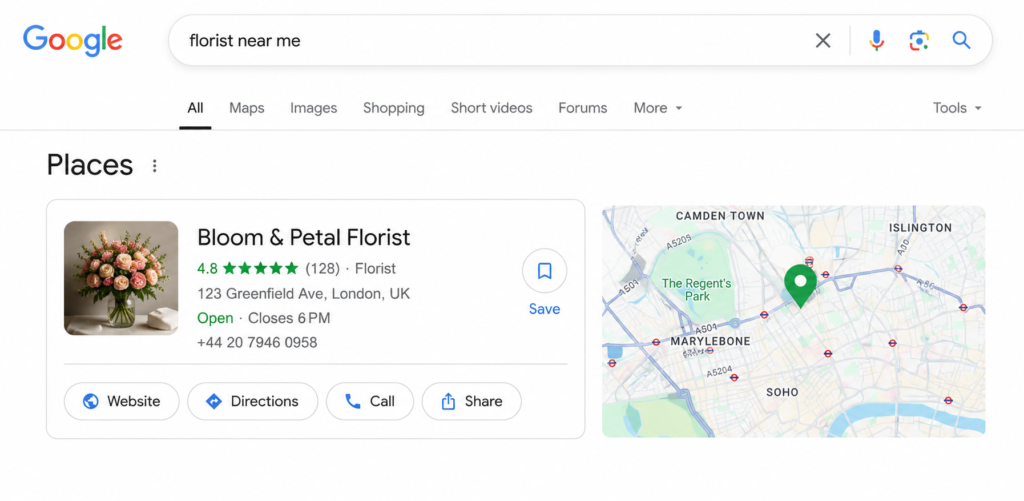
If your business operates locally — you have a physical address, you serve customers in a specific city or region, or you visit customers at their location — then a Google Business Profile is one of the most powerful SEO moves you can make.
It is what makes your business appear in Google Maps results and in the “local pack” — the box of three local businesses that appears at the top of Google results for searches like “florist near me” or “coffee shop Bristol.” This is often more visible than a regular organic result.
How to do it: Go to business.google.com and create a free account. Enter your business name, address, phone number, opening hours, and category. Add real photos of your location and what you offer. Verify your listing (usually by postcard or phone). Once verified, the listing is live.
Most important thing after setup: Ask satisfied customers to leave a review. Google reviews are one of the biggest factors in local search rankings. Even five or ten genuine reviews will put you ahead of competitors who have none.
Your Complete Checklist
Here is everything in one place. Tick these off one by one:
| ☐ | Google Search Console connected and verified |
| ☐ | Keywords researched — list of phrases your customers actually search for |
| ☐ | Title tags updated for every main page — descriptive, under 60 characters, includes location if local |
| ☐ | Meta descriptions written for every main page — under 155 characters, gives a reason to click |
| ☐ | Every main page has exactly one H1 heading that clearly states what the page is about |
| ☐ | Alt text added to every image — describes what is in the image, not the filename |
| ☐ | Google Business Profile created and verified (local businesses only) |
| How long will this take? If you set aside a focused afternoon, you can complete all seven steps in 2-3 hours. Title tags and meta descriptions take the longest if you have many pages. Start with your homepage and 3-4 most important service pages — those will make the biggest difference. |
What Happens After You Do This?
Once you have done these seven things, your website will be in a meaningfully better position than it was. Google will understand what each page is about. Your site will be more likely to appear for the right searches. And you will have the data — from Search Console — to see whether it is working.
You will not jump to page one of Google overnight. SEO takes time. But the businesses that eventually rank well are the ones that got the basics right first. You will have done that.
Two things to do after completing this checklist:
- Check Google Search Console every month — look at which queries are bringing people to your site and which pages are getting impressions. This tells you where to focus next.
- If you want to go further — creating more content, building links, improving page speed, or competing in harder markets — that is where more advanced SEO work starts. The basics in this guide are the foundation everything else builds on.
FAQ
How long before my website shows up in Google?
After you complete this checklist, Google typically takes 1-4 weeks to re-crawl and re-evaluate your pages. For a brand new website, it can take 3-6 months before you start seeing meaningful organic traffic. For an existing website that has just been optimised, you may see movement faster — especially in Search Console data.
Do I need to pay for SEO tools?
Not to do the basics. Google Search Console, Google Keyword Planner, and Google Business Profile are all free. The Yoast SEO plugin for WordPress has a free version that covers everything in this guide. You do not need to pay for anything to complete this checklist.
What is the difference between SEO and Google Ads?
Google Ads means you pay to appear at the top of search results. When you stop paying, you stop appearing. SEO means you earn your position by making your site genuinely useful and relevant to what people are searching for. It takes longer but the results last — and you do not pay per click.
My website already has someone who “does SEO.” Should I still do this?
You can check whether these basics are already in place. Open Google Search Console and see if your site is verified. Google a few of your service pages and see what title tags appear. If these things are not set up properly, it is worth asking whoever manages your SEO why not.
I have done all of this — what should I do next?
| Done the basics and want to know what comes next? We offer SEO consulting for small businesses who want expert guidance without committing to a full agency engagement. See SEO Consulting → Scope call is free. martraff.com |