
How to Read Google Search Console: A Beginner’s Guide
Google Search Console is the most useful free tool in SEO — and one of the most underused, because the first time you open it, it looks like a wall of graphs and numbers with no obvious starting point.
Here is the thing worth understanding upfront: Search Console is Google telling you, directly, how your website performs in search. Not an estimate from a third-party tool. Google’s own data — which searches show your site, how often people click, which pages have problems, and what Google wants you to fix. Once you know which four or five reports actually matter, it becomes the single most valuable dashboard you have.
This guide walks through those reports in plain language: what each one shows, what a healthy version looks like, and what to actually do with the information. If you have not connected Search Console yet, our basic SEO setup guide covers that first — this guide assumes it is connected and collecting data.
The Performance Report — Where to Start
The Performance report is the one you will use most. It answers the core question: which searches bring people to my site, and what happens when they see it? Everything here is real data about your actual visitors from Google Search.
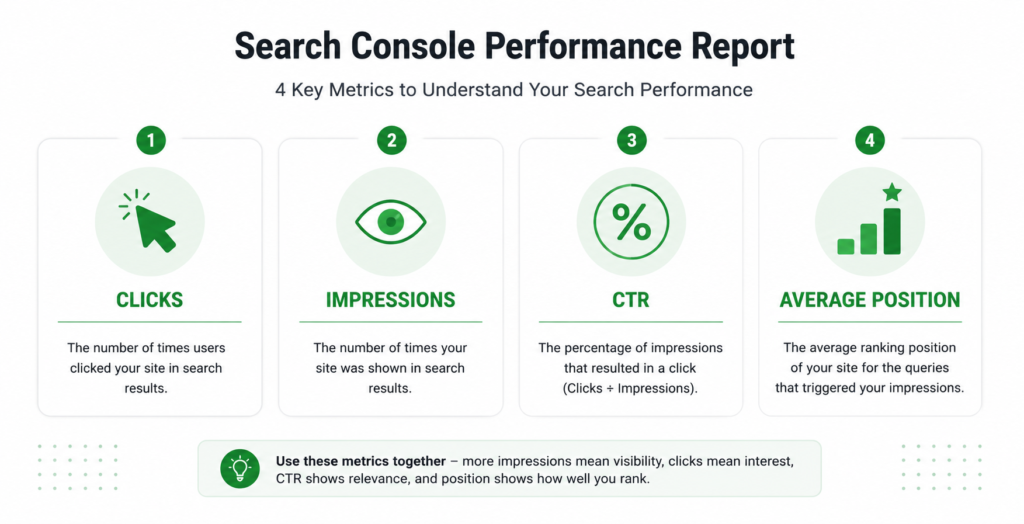
At the top you will see four metrics. Understanding these four is 80% of understanding Search Console:
| Metric | What it means |
| Total Clicks | How many times someone clicked through to your site from Google Search. This is real traffic. |
| Total Impressions | How many times your site appeared in search results — whether or not anyone clicked. High impressions but low clicks means you are showing up but not compelling enough to click. |
| Average CTR | Click-through rate — the percentage of impressions that became clicks. Clicks divided by impressions. Low CTR often means your title tags and meta descriptions need work. |
| Average Position | Your average ranking position for the searches you appear in. Position 1 is the top. Lower number is better. Position 8 means you are usually near the bottom of page one. |
| “The single most useful view in Search Console: open the Performance report, click the Queries tab, and sort by impressions. You are now looking at every search where Google shows your site — including the ones you rank for but did not know about. This is where opportunities hide.” |
What to actually do with the Performance report
- Find “striking distance” keywords. Filter for queries where your average position is between 8 and 20 — page one bottom to page two. These are searches you almost rank well for. Improving the matching page slightly can push them onto page one, where the clicks are.
- Find high-impression, low-CTR pages. Sort queries by impressions, then look at CTR. A query with thousands of impressions but a 1% CTR means you appear often but your title and description are not compelling. Rewriting them is a quick win.
- Discover queries you did not target. You will find searches bringing you impressions that you never optimised for. If they are relevant, that is a signal to create or improve a page for them.
The Pages Tab — Which Pages Actually Work
Inside the Performance report, switch from Queries to the Pages tab. Now you see the same click and impression data, but grouped by page instead of by search term. This tells you which of your pages are doing the heavy lifting.
What to look for: your top pages by clicks are your most valuable organic assets — protect and improve them. Pages with high impressions but low clicks may have a title or intent mismatch. And pages you expected to perform that are absent entirely may not be indexed at all — which leads to the next report.
The Pages (Indexing) Report — Is Google Even Showing Your Site?
Under the Indexing section in the sidebar, the Pages report (Google previously called this “Coverage”) answers a critical question: which of your pages are actually in Google’s index, and which are not? A page that is not indexed cannot rank for anything — it is invisible in search, no matter how good it is.
The report splits your pages into two groups: Indexed (Google has them and they can appear in search) and Not indexed (Google is not showing them, with a reason for each).
The “Not indexed” reasons sound technical but most are simple once translated:
| Reason shown | What it usually means |
| Crawled — currently not indexed | Google found the page but chose not to index it — often a sign of thin or low-value content. Common on near-empty category pages. |
| Discovered — currently not indexed | Google knows the page exists but has not crawled it yet — often a crawl budget issue on large sites, or a very new page. |
| Duplicate without user-selected canonical | Google thinks this page duplicates another and picked the other version. Common with product variant URLs and filter pages. |
| Excluded by ‘noindex’ tag | You (or your platform) told Google not to index this page. Intentional sometimes — a problem if it is a page you want ranking. |
| Soft 404 | The page loads but looks empty or error-like to Google. Common on out-of-stock product pages with no content. |
| Page with redirect | The page redirects elsewhere — normal if intentional, worth checking if not. |
| The one to watch: “Crawled — currently not indexed” on pages you care about is Google’s quiet way of saying the content is not good enough to rank. If your category or product pages are landing here, the fix is usually more unique, useful content on the page — not a technical change. |
The Core Web Vitals Report — Is Your Site Fast Enough?
Under the Experience section, the Core Web Vitals report shows how your pages perform on Google’s page speed and stability metrics, using data from real visitors. It groups your URLs into Good, Needs Improvement, and Poor, split by mobile and desktop.
For a beginner, the action is simple: look at how many URLs are rated Poor on mobile. Those are your priority. If the report shows a cluster of Poor pages, they usually share the same template — fixing the template fixes them all at once. Our Core Web Vitals guide covers what each metric means and how to fix the common causes.
| “Search Console’s Core Web Vitals report uses field data — real visitors on real devices — which is the same data Google uses for rankings. This makes it more reliable than the lab scores you get from most speed-testing tools. Trust this report over a one-off PageSpeed test.” |
Two More Reports Worth Knowing
Sitemaps
Under the Indexing section, the Sitemaps report shows whether Google has received your XML sitemap — the file that lists all the pages you want indexed. If you have not submitted one, do it here: it helps Google discover your pages faster. A healthy sitemap shows a “Success” status and a number of discovered URLs roughly matching your real page count. A big mismatch is worth investigating.
Enhancements / Rich Results
If you have structured data on your site — product schema, FAQ markup, review stars — the Enhancements reports show whether Google can read it and whether there are errors. For an online store, the Products enhancement report tells you how many product pages have valid structured data and how many have errors preventing rich results like price and rating in search. Errors here mean you are missing out on richer, more clickable listings.
A Simple Monthly Search Console Routine
You do not need to check Search Console daily. A focused 20-minute review once a month catches the things that matter:
| 01 | Open the Performance report. Compare the last 3 months to the previous 3 months. Is total clicks trending up, flat, or down? |
| 02 | Check the Queries tab for striking-distance keywords (position 8-20). Note 2-3 pages to improve. |
| 03 | Check the Pages tab. Are your money pages still your top performers? Has anything dropped sharply? |
| 04 | Open the Pages (Indexing) report. Did the number of “Not indexed” pages jump? If so, why? |
| 05 | Glance at Core Web Vitals. Any new Poor URLs on mobile? |
| 06 | Check Enhancements for new structured data errors. |
| The one habit that matters most: check your Performance report monthly and act on the striking-distance keywords. That single routine — finding searches where you rank on page two and nudging them to page one — is the highest-value thing most small businesses can do with Search Console. |
FAQ
How long does Search Console take to show data?
After you connect and verify your site, Search Console starts collecting data immediately but there is a 2-3 day delay before it appears, and the Performance report only shows data from the point of verification forward — it does not backfill history. A brand-new property will have sparse data for the first few weeks. Give it a month before drawing conclusions from trends.
What is the difference between clicks and impressions?
An impression is counted every time your site appears in someone’s search results — even if they do not click. A click is counted when they actually visit your site from that result. If you have 1,000 impressions and 50 clicks, your site was shown 1,000 times and visited 50 times, for a 5% click-through rate. High impressions with low clicks means you are visible but not compelling — usually a title tag and meta description issue.
My page is not indexed — is that always a problem?
Not always. Some pages should not be indexed — internal search results, thank-you pages, filtered URLs, admin pages. The problem is when a page you want to rank is not indexed. Check the reason in the Pages report: if an important product or category page shows “Crawled — currently not indexed,” that usually means the content needs to be stronger. If it shows “Excluded by noindex tag” unexpectedly, a setting is blocking it.
Do I need Search Console if I already use Google Analytics?
Yes — they do different jobs. Analytics tells you what people do on your site after they arrive. Search Console tells you how they found you in Google Search — which queries, which rankings, which pages appear, and what technical issues Google sees. Analytics is about behaviour on-site; Search Console is about visibility in search. For SEO specifically, Search Console is the more important of the two.
| Search Console showing problems you are not sure how to fix? An SEO audit reads your full Search Console data alongside a technical and content review — and tells you which issues actually cost you traffic and revenue. Get an SEO Audit → No commitment. martraff.com |