
How to Optimize Product Images for SEO and Speed
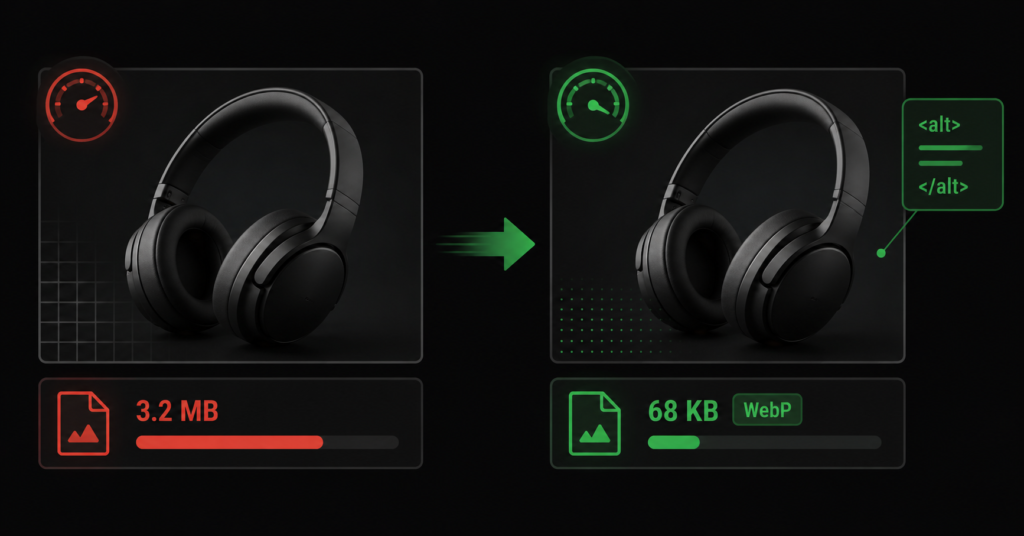
On most ecommerce stores, the single heaviest thing on any page is an image — usually a product photo that was uploaded straight from a camera or a supplier feed at full resolution and never touched again. It is also, on most stores, the easiest large speed win available, and a source of search traffic that is quietly ignored.
Image optimisation pays off in two directions at once. Smaller, properly formatted images make pages load faster — which improves Core Web Vitals and conversions. Well-described images with proper alt text and file names rank in Google Images, which for many product categories is a real and underused traffic source. One piece of work, two returns.
This guide covers both: how to make product images fast, and how to make them findable — with the specific steps that matter for an online store, not generic advice about compressing a blog header.
Why Product Images Are Usually the Problem
In store audits, the same two image findings appear over and over: images far larger than they need to be, and images with no alt text at all. In one audit, a site had 32 images over 100KB and 52 images with no alt attribute — on a site that was not especially large. On a full catalogue, those numbers scale into the thousands.
| The problem | What it costs |
| Oversized files | The product image is almost always the Largest Contentful Paint element on a product page. An oversized hero image directly delays LCP — a Core Web Vitals ranking factor and a conversion killer. |
| Wrong format | JPEG and PNG are 25-35% larger than WebP or AVIF at the same visual quality. Serving legacy formats means every visitor downloads more than they need to. |
| No alt text | The image is invisible to Google Images, invisible to screen readers, and gives Google no signal about what the page depicts. |
| No dimensions set | Images without width and height reserve no space, causing layout shift (CLS) as they load — another Core Web Vitals failure. |
| Generic file names | IMG_4521.jpg tells Google nothing. A descriptive file name is a small but real ranking signal for image search. |
| “An unoptimised product image fails twice: it slows the page for every visitor, and it is invisible to image search. Both are fixable in the same pass — and on a store where the product photo is the biggest element on the page, it is often the highest-impact speed work available.” |
Making Images Fast
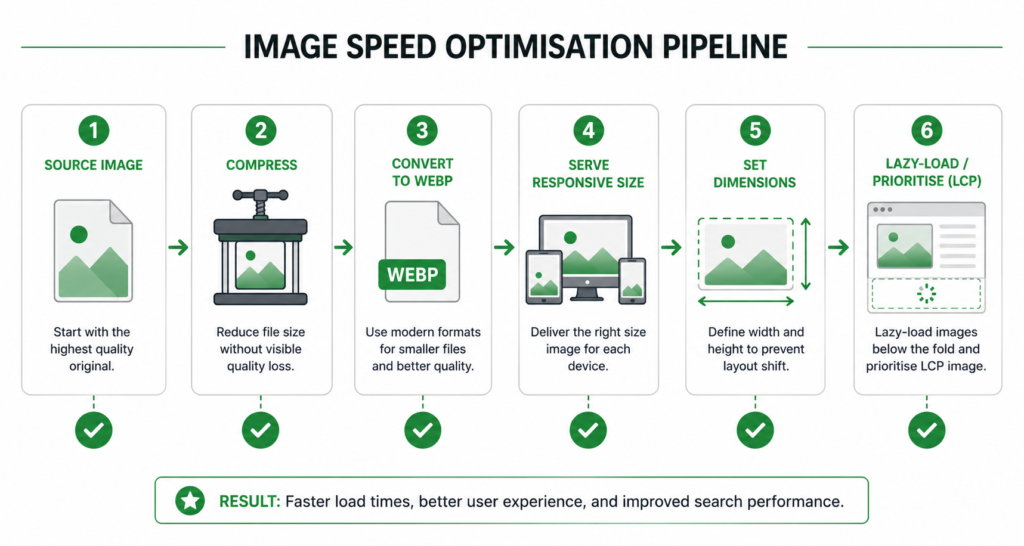
Four things make the difference between an image that drags your page down and one that loads before the visitor notices.
1. Compress before uploading — and automatically after
Most product images can lose 60-70% of their file size with no visible quality loss. A 2MB photo becomes 400KB and looks identical on screen. Do this at two levels: compress source images before upload, and run an automatic compression tool on the store so nothing slips through uncompressed.
- WooCommerce: a plugin like ShortPixel, Imagify, or Smush compresses on upload and can convert to WebP automatically.
- Shopify: serves images through its CDN and compresses automatically, but oversized source uploads still waste bandwidth — resize before uploading.
2. Use WebP or AVIF
WebP is supported by every modern browser and is 25-35% smaller than JPEG at equivalent quality. AVIF is smaller still. For an ecommerce store with dozens of images per category page, switching formats can cut page weight dramatically. Most compression plugins convert and serve WebP with a JPEG fallback automatically — you rarely need to do this by hand.
3. Serve the right size — do not scale in the browser
A common and expensive mistake: uploading a 2000px-wide image and displaying it in a 400px slot. The browser downloads the full 2000px file and shrinks it, wasting most of the bytes. Serve responsive images at the size they are actually displayed, using the srcset attribute so each device downloads an appropriately sized version.
| <img src=”chair-x200-800.webp” srcset=”chair-x200-400.webp 400w, chair-x200-800.webp 800w, chair-x200-1200.webp 1200w” sizes=”(max-width: 600px) 400px, 800px” width=”800″ height=”800″ alt=”ErgoLine X200 ergonomic office chair in black”> |
4. Lazy-load below-the-fold, prioritise the LCP image
Images below the fold should lazy-load — the browser only fetches them as the user scrolls near them, so they do not compete with the initial page load. But the main product image, which is usually the Largest Contentful Paint element, should do the opposite: mark it with fetchpriority=”high” and do not lazy-load it, so the browser fetches it first.
| The common lazy-loading mistake: applying lazy-load to every image including the main product photo. This delays the LCP element and makes Core Web Vitals worse, not better. Lazy-load everything below the fold; eagerly load and prioritise the one image that is above it. |
Set Dimensions to Stop Layout Shift
Every image should have explicit width and height attributes in the HTML. Without them, the browser does not know how much space to reserve, so when the image loads it pushes everything below it down — the layout jumps. This is Cumulative Layout Shift, a Core Web Vitals metric, and it is one of the most common causes of CLS failures on product and category pages.
Setting width and height does not fix the display size — CSS still controls that. It just tells the browser the aspect ratio so it can reserve the correct space before the image arrives. It is a one-attribute fix with a direct Core Web Vitals payoff.
Making Images Findable in Search
The other half of image optimisation is search visibility. For visual product categories — furniture, fashion, homeware, decor — Google Images is a genuine traffic source that most stores ignore entirely.
Alt text that describes the product
Alt text serves two purposes: accessibility (screen readers read it aloud) and SEO (it tells Google what the image shows). For product images, good alt text describes the product specifically — not keyword-stuffed, just accurate.
| ✓ Good alt=”ErgoLine X200 ergonomic office chair in black mesh” | ✗ Weak alt=”chair” — or worse, alt=”” (empty), or alt=”IMG_4521″ |
The rule is: describe what a person would see if the image did not load. Include the product name and a distinguishing attribute (colour, material, model). Do not stuff keywords — alt=”office chair cheap office chair buy office chair” is both useless to a screen reader and a spam signal to Google. One accurate, natural description per image is the standard. This is core on-page SEO work that most stores skip at scale.
Descriptive file names
The file name is a small ranking signal for image search, and it costs nothing to get right at upload time. ergoline-x200-office-chair-black.webp tells Google what the image is; IMG_4521.jpg tells it nothing. Use hyphens between words, keep it descriptive, and set it before upload — renaming thousands of already-uploaded files is far more work than doing it right the first time.
Image sitemaps and structured data
For large catalogues, including image URLs in your XML sitemap (or a dedicated image sitemap) helps Google discover and index them. And the image field in your product schema is a required field — it tells Google which image represents the product for rich results and shopping listings. These two together give Google the strongest possible signal about your product images.
Images That Convert, Not Just Rank
Speed and findability get the visitor to the page. The images themselves have to do the selling — and store audits repeatedly surface the same conversion-costing gaps.
- Missing images. Categories, subcategories, or products with no image at all signal a broken or incomplete store and push buyers away. Every product needs at least one real image.
- Only one angle. A single photo is rarely enough for a considered purchase. Multiple angles, scale references, and in-use shots reduce uncertainty and returns.
- No zoom. Buyers want to inspect detail. A zoom or enlarge feature — consistently, on every product, not just some — is a repeatedly-flagged gap that directly affects confidence to buy.
- Image does not match the selected variant. When a customer selects a colour and the main image does not update to show that colour, they cannot see what they are buying. This is both a conversion problem and a reason to provide an image per variant.
Original product photography also does double duty as an experience signal — your own photos, from angles the manufacturer press kit does not cover, are evidence to Google and buyers that you actually handle the product, not just list it.
A Practical Image Workflow for a Store
| 01 | At upload: name the file descriptively, resize to the largest size actually displayed, and write accurate alt text. Getting these right at source avoids reworking thousands of files later. |
| 02 | Install automatic compression + WebP conversion so nothing uncompressed reaches visitors. |
| 03 | Ensure your theme outputs width and height attributes and responsive srcset. Most modern themes do — verify, do not assume. |
| 04 | Set the main product image to load eagerly with high priority; lazy-load everything below the fold. |
| 05 | Add multiple angles, a zoom feature, and a per-variant image where colours or finishes differ. |
| 06 | Verify: run a product page through PageSpeed Insights and check the image is not flagged as an LCP or CLS problem. |
| The one that matters most at scale: step 1. Fixing image names, sizes, and alt text at upload takes seconds per product. Fixing them across a catalogue of thousands after the fact is a project. Build the discipline into how products get added and the problem never accumulates. |
FAQ
What is the ideal file size for a product image?
There is no single number, but a good target for a main product image is under 150KB after compression, and under 100KB for thumbnails and gallery images. The real test is not the raw number but whether the image is flagged in PageSpeed Insights as an oversized image or an LCP problem. Compress until quality visibly degrades, then step back one level — that is usually well under these targets.
Should I use WebP or AVIF?
WebP is the safe default — universally supported and significantly smaller than JPEG. AVIF is smaller again and worth using if your platform or CDN supports serving it with a WebP or JPEG fallback for older browsers. For most stores, WebP with automatic conversion captures the majority of the benefit with none of the compatibility risk. Do not agonise over the choice; either beats JPEG.
Does alt text really affect rankings?
For regular web rankings, its effect is modest — it is one signal among many about what a page covers. For Google Images rankings, it is a primary signal, and for accessibility it is essential. The reason to do it is not a big web-ranking boost; it is that it unlocks image-search traffic, serves users who need screen readers, and costs almost nothing to do at upload. Skip it and you are invisible in image search.
Will optimising images actually speed up my store noticeably?
On most ecommerce stores, yes — images are frequently the largest contributor to page weight, so optimising them is one of the highest-impact speed changes available. A category page loading twenty unoptimised product photos can easily be carrying several megabytes of unnecessary image data. Cutting that improves Largest Contentful Paint directly, which is both a ranking factor and a conversion factor.
| Are your product images slowing your store down? We audit image weight, format, alt text, and Core Web Vitals impact as part of technical SEO — and fix the ones costing you speed and search traffic. See Our Technical SEO Service → No commitment. No generic report. martraff.com |