
Shopify SEO: The Technical Problems No One Talks About
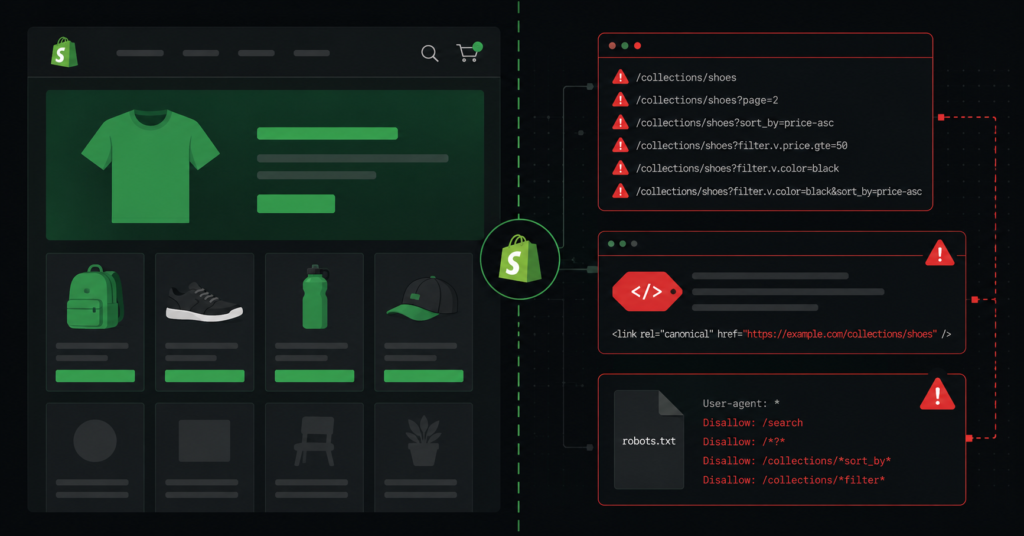
Shopify makes launching an ecommerce store straightforward. The platform is clean, hosted, and handles most of the infrastructure for you. But there is a trade-off: Shopify also makes decisions about your site’s technical structure that you cannot easily override — and several of those decisions create SEO problems.
Most agencies either do not know about these issues or treat Shopify as a black box. They optimise titles and meta descriptions, run a few reports, and call it done. Meanwhile, the platform-level problems keep quietly suppressing rankings.
This article covers the Shopify-specific technical SEO issues we find consistently across audits — what they are, why they happen on Shopify in particular, and what you can actually do about them. If you want to see the same analysis for other platforms, we have covered BigCommerce SEO problems and WooCommerce filter page issues separately.
1. Duplicate Product URLs from Collections
This is the most widespread Shopify SEO issue — and the one most agencies miss entirely.
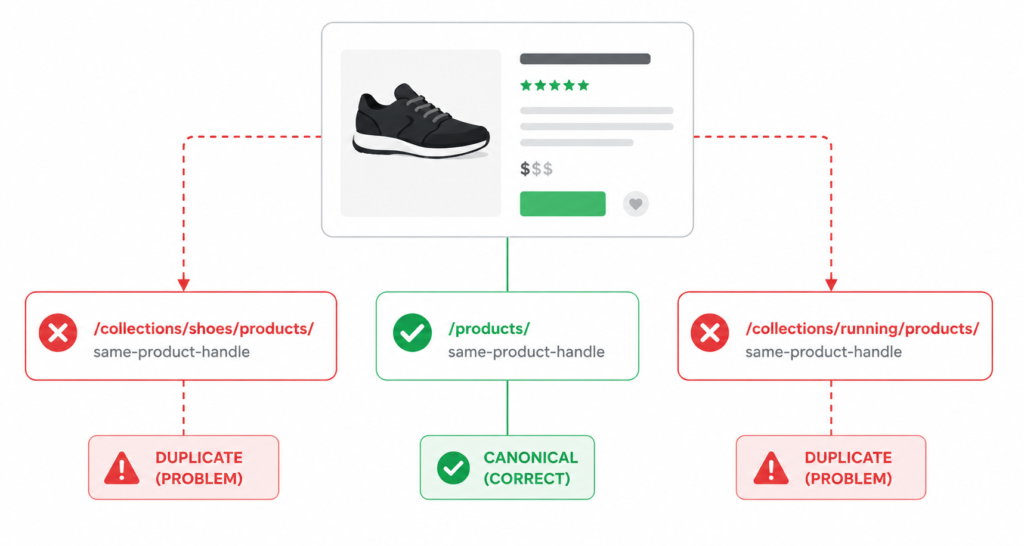
When a customer navigates to a product through a collection, Shopify generates a URL that includes the collection path:
| yourstore.com/products/blue-running-shoesyourstore.com/collections/shoes/products/blue-running-shoesyourstore.com/collections/running/products/blue-running-shoes |
All three URLs display identical content — the same product page. Google can access all of them. This means the same product can appear at multiple URLs simultaneously, splitting ranking signals instead of concentrating them on one strong page.
Why Shopify does this
Shopify’s URL structure is designed for navigation — when you browse through a collection and click a product, Shopify preserves the collection context in the URL. It is a UX decision that creates an SEO problem.
What Shopify does about it
Shopify adds a canonical tag on collection-path URLs pointing back to the /products/ version. In theory, this tells Google which URL is the “real” one. In practice, the implementation has gaps — particularly on older themes, after theme updates, or when third-party apps modify page templates.
| ⚠ Do not assume the canonical is working just because Shopify says it adds one. Check a sample of your product pages with a crawler or browser inspection tool to confirm the canonical tag is present, correct, and pointing to /products/ — not to a collection variant, not to itself. |
What to do
- Crawl your store with Screaming Frog and filter for pages with missing, self-referencing, or incorrect canonical tags
- Check that every collection-path product URL has a canonical pointing to /products/product-handle/
- If your theme is not generating correct canonicals, this can be fixed in the theme’s Liquid templates — or via a Shopify app that manages canonical tags
- Audit after every major theme update — updates frequently reset or alter canonical tag behaviour
2. The robots.txt File You Cannot Fully Control
On most platforms, you can edit robots.txt freely. On Shopify, the platform controls a significant portion of it. Even on Shopify 2.0, where some editing is now possible, there are default rules you cannot remove — and several of them affect SEO.
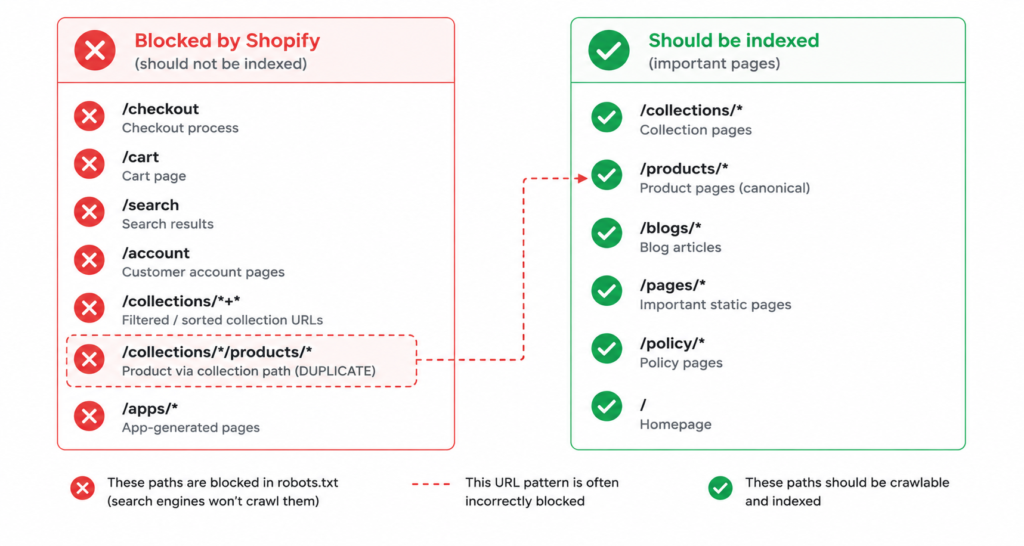
What Shopify blocks by default
- Internal search result pages (/search) — these are typically fine to block, as they’re low-value and can generate thousands of URLs
- Checkout pages — also fine
- Some apps inject their own URL structures that end up in robots.txt blocks, preventing Google from crawling pages that should actually be indexed
- The /collections/ path with filter parameters — this varies by theme and configuration, and is not always correctly handled
Why this matters
If a URL is blocked in robots.txt, Google cannot crawl it at all — canonical tags, links, and content on that page are invisible to search engines. If a page you want ranked is accidentally blocked, it will not appear in search results, regardless of how well optimised it is.
We have seen Shopify stores where app-generated landing pages were blocked in robots.txt — pages that were being actively linked to from email campaigns and social ads, receiving traffic, but contributing zero SEO authority because Google could not access them.
What to do
- In your Shopify admin, go to Online Store → Themes → Edit Code → robots.txt.liquid (on Shopify 2.0)
- Review which paths are blocked — cross-reference against pages you want indexed
- For pages accidentally blocked by app integrations, contact the app developer or modify the robots.txt.liquid template to remove those blocks
- After making changes, use Google Search Console’s URL Inspection tool to confirm affected pages are now crawlable
3. Collection Page Thin Content
Collection pages are the most important SEO real estate on a Shopify store. They are the category pages — the pages that should rank for “black leather sofas”, “men’s running shoes under £100”, “office chairs for back pain”. But on most Shopify stores, collection pages contain almost no text.
A typical Shopify collection page has a title, maybe a one-line description added in the admin, and then a product grid. Google sees a page with 20-50 words of unique text and dozens of product images. That is not enough to rank competitively for valuable commercial queries.
Why collection pages stay thin
Shopify’s default collection setup does not prompt merchants to write content. There is a description field in the admin, but it displays above the product grid — not ideal for SEO content placement — and most themes limit its styling. Adding substantive content below the product grid requires theme code changes, which most merchants and many agencies never make.
What to do
- Add 150-300 words of useful, keyword-relevant content to your top collection pages — not filler text, but content that actually helps a customer understand what the collection contains and how to choose
- Place content below the product grid where possible — this is better for UX (customers see products first) and tells Google the content is supplementary, not the primary purpose of the page
- Include the target keyword naturally in the collection title (H1), the description text, and the meta title and description
- For your highest-value collections, consider adding an FAQ section — this targets informational queries and can generate featured snippet appearances
| “A collection page with 300 words of useful, well-structured content will consistently outperform an identical page with 40 words — all else being equal. Google needs text to understand what a page is about. Product images and titles alone are not sufficient for competitive rankings.” |
4. JavaScript-Dependent Content That Google May Not Index
Modern Shopify themes load an increasing amount of content via JavaScript — product reviews, recently viewed items, cross-sells, dynamic pricing, and in some cases even product descriptions loaded client-side. This creates a crawlability problem.
Google can render JavaScript, but it processes it differently from HTML. JavaScript-loaded content takes longer to be seen, may not be crawled on every visit, and can be missed entirely if the rendering fails or times out. Content that is critical for ranking — product descriptions, review summaries, structured data — should be in the HTML, not loaded via JavaScript after page render.
How to identify JavaScript-dependent content
- In Chrome, go to a product or collection page and disable JavaScript (Settings → More tools → Developer tools → three dots → Run command → “Disable JavaScript”)
- Reload the page. Anything that disappears or shows as empty was loaded via JavaScript
- Compare what Google sees: use the URL Inspection tool in Google Search Console → “View Crawled Page” → “More Info” to see the rendered version Google processed
What to do
- Ensure product descriptions, key specifications, and review data are present in the page’s initial HTML — not loaded after the fact
- If your theme loads reviews via a JavaScript app, check that the review content is visible in Google’s rendered version of your pages
- For structured data (Product schema, Review schema) — inject it server-side in the Liquid template, not via a JavaScript snippet that fires after load
- If you use a headless Shopify setup, this becomes significantly more complex — server-side rendering of critical SEO content is essential
5. XML Sitemap Including Low-Value and Non-Canonical URLs
Shopify automatically generates a sitemap at yourstore.com/sitemap.xml. It includes products, collections, blog posts, and pages. On a large store, it can also include URLs you do not want submitted to Google — filtered collection variants, paginated pages, and in some cases app-generated pages.
Submitting low-value or non-canonical URLs in your sitemap sends Google a conflicting signal: you are telling it these pages are important enough to index while simultaneously (via canonical tags or noindex directives) telling it they are not the authoritative version. Google notices this inconsistency and it erodes your sitemap’s credibility.
What to check in your Shopify sitemap
- Review your sitemap in Google Search Console → Sitemaps — check how many URLs are submitted vs how many are indexed
- Look for filter parameter URLs (?sort_by=, ?filter.p.m=) appearing in the sitemap output
- Check for app-generated pages that should not be indexed
- Cross-reference submitted URLs against your GSC Coverage report — any URL marked “submitted but noindex” is a direct contradiction to resolve
What to do
Shopify’s sitemap is auto-generated and has limited customisation options. For advanced sitemap control — excluding specific URL patterns, customising what is included — you will need either a Shopify sitemap app or custom theme code modifications. For most stores, the priority is ensuring that any URL in the sitemap is also set to index, follow and has a self-referencing canonical or no canonical conflict.
FAQ
Is Shopify bad for SEO?
No — but it has platform-specific constraints that require platform-specific knowledge to handle correctly. A Shopify store with properly configured canonicals, clean robots.txt, substantive collection page content, and server-side structured data can rank competitively. The issue is that most Shopify SEO work stops at title tags and meta descriptions, leaving the structural problems unaddressed.
Do Shopify SEO apps solve these problems?
SEO apps handle the basics well — title tag templates, meta description management, sitemap generation, alt text. They do not resolve the structural issues: duplicate URL canonical handling varies by app quality, robots.txt control is still limited, and collection page content still requires manual input. Apps are a useful starting layer, not a complete solution.
How is Shopify different from WooCommerce for SEO?
WooCommerce’s main SEO challenges are around filter pages and crawl budget — the platform generates thousands of filter-combination URLs that consume Google’s attention on your site. Shopify’s main challenges are the duplicate URL structure from collections and the limited ability to control technical settings. Both are solvable, but they require different approaches.
We have a Shopify Plus store. Does that change anything?
Shopify Plus provides more control over the checkout experience and some technical settings, but the core SEO issues — duplicate product URLs from collections, robots.txt limitations, thin collection pages — apply to all plan levels. The canonical strategy, content approach, and structured data implementation are the same regardless of whether you are on standard Shopify or Plus.
How do I know if my Shopify store has these problems?
A Shopify SEO audit will tell you exactly what your store has, what the severity is, and what to prioritise. If you want to check yourself first: run Screaming Frog on your store, filter for canonical issues, check your robots.txt against your intended indexed pages, and review your top collection pages for content depth.