
WooCommerce Filter Pages Are Wasting Your Crawl Budget — Here’s the Fix

Open Google Search Console on a WooCommerce store with filters and sort by Coverage. There’s a good chance you’ll find a number that surprises you — hundreds or thousands of indexed URLs you didn’t intentionally create.
These are filter pages. WooCommerce generates them automatically when a user applies a filter — by color, size, brand, price range, or any other attribute your theme supports. Each combination becomes its own URL.
Left unmanaged, these URLs get crawled, sometimes indexed, and end up consuming a disproportionate amount of Google’s attention on your store. The pages that actually matter — your category pages, product pages, landing pages — get less crawl frequency as a result.
This is not a rare edge case. It’s one of the most consistently underestimated technical SEO problems in WooCommerce stores, and it’s entirely fixable.
What Are WooCommerce Filter Pages?
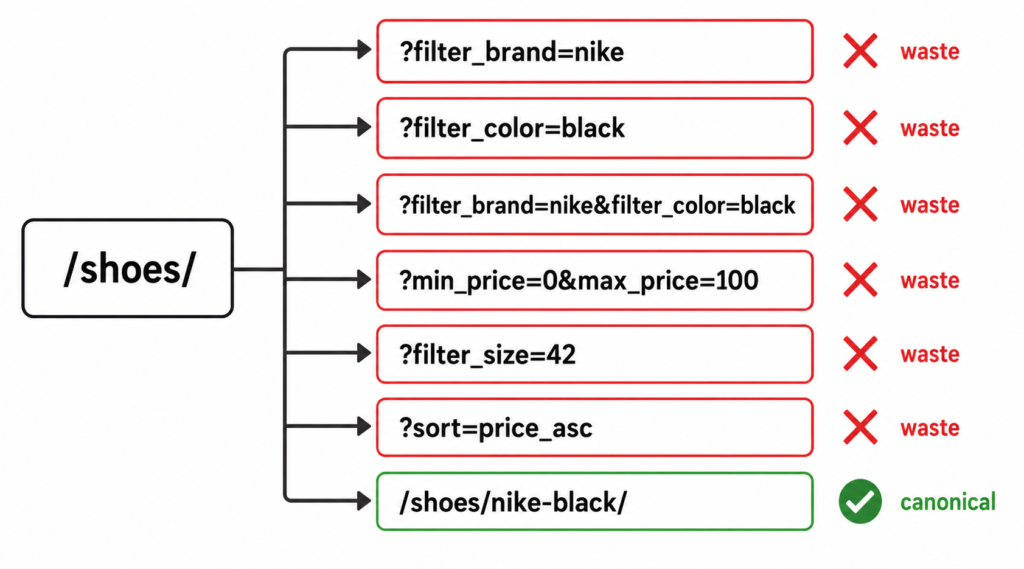
When a customer visits your shop and filters by, say, brand = “Nike” and color = “black”, WooCommerce creates a URL that looks something like this:
| https://yourstore.com/shop/?filter_brand=nike&filter_color=black |
That URL is accessible to both users and search engines. Add a price range and you get another URL. Add a size and you get another. On a store with 10 brands, 8 colors, 5 sizes, and 3 price ranges, the combinatorial math produces thousands of potential URLs — most of which no real user would ever search for directly.
WooCommerce, by default, does not tell Google to ignore these URLs. Depending on your theme, plugins, and configuration, they may be crawlable, indexable, or both.
Why This Wastes Crawl Budget
Google allocates a crawl budget to every site — a rough limit on how many pages it will crawl within a given period. For most ecommerce stores, that budget is finite and tied to the site’s overall authority and server performance.
When Google encounters thousands of filter URLs, it has to make decisions:
- Should it crawl this URL?
- Is the content different enough from other pages to be worth indexing?
- Does this page provide value to a searcher?
For most filter combinations, the answer to all three is no. A page for “black Nike shoes under £50” on a small store doesn’t serve a real search query at scale — it’s a navigational state, not a content destination. But Google still spends crawl budget figuring that out, over and over, across thousands of URLs.
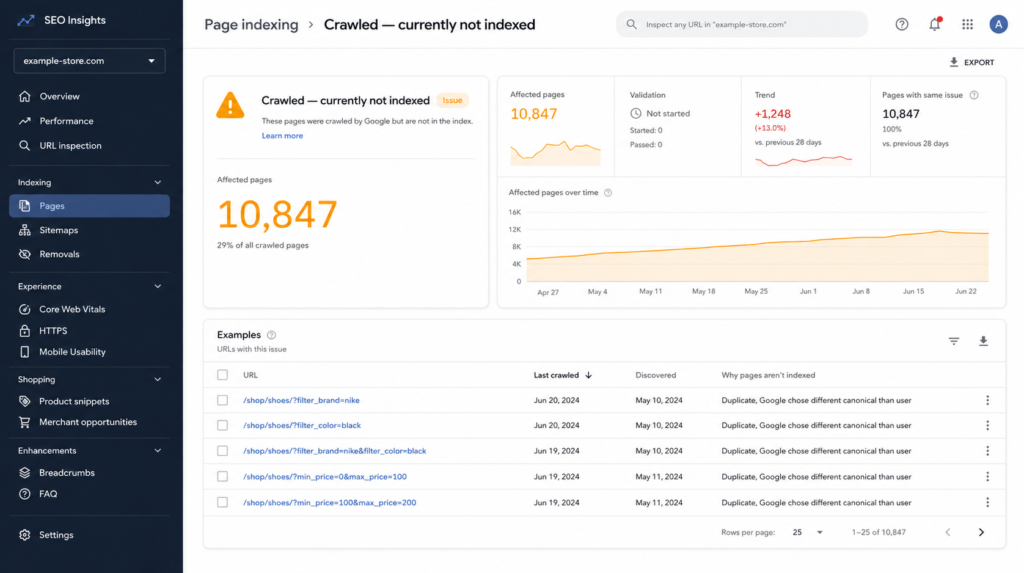
| ⚠ In one WooCommerce audit, we found over 10,500 pages in “Crawled — not currently indexed” status in Google Search Console. The root cause was filter-generated URLs consuming the majority of the site’s available crawl budget, leaving core category and product pages crawled less frequently than they should have been. |
Reduced crawl frequency means ranking changes take longer to register, newly added products take longer to appear in search, and fixes you’ve implemented take longer to be reflected in rankings.
The Three Most Common Filter URL Problems
1. Filter URLs Are Indexable by Default
Without explicit configuration, WooCommerce filter URLs are indexable. Google can and will add them to its index. This fragments your ranking signals — instead of one strong category page for “Nike running shoes”, you might have 40 thin filter variations competing with each other and with the main page.
2. Canonical Tags Point to the Wrong Place
Some WooCommerce setups add canonical tags to filter URLs pointing back to the base category page — which sounds correct but isn’t always handled consistently. We’ve seen canonicals pointing to the /shop/ homepage, to paginated variants, or simply misconfigured to the filter URL itself. A broken canonical is worse than no canonical — it actively misleads Google about which version of the page you want to rank.
3. Filter URLs Appear in the XML Sitemap
If your sitemap plugin doesn’t explicitly exclude dynamic query parameters, filter URLs can end up submitted directly to Google. This tells Google “these pages are important” — the opposite of what you want.
How to Fix WooCommerce Filter Page Indexation
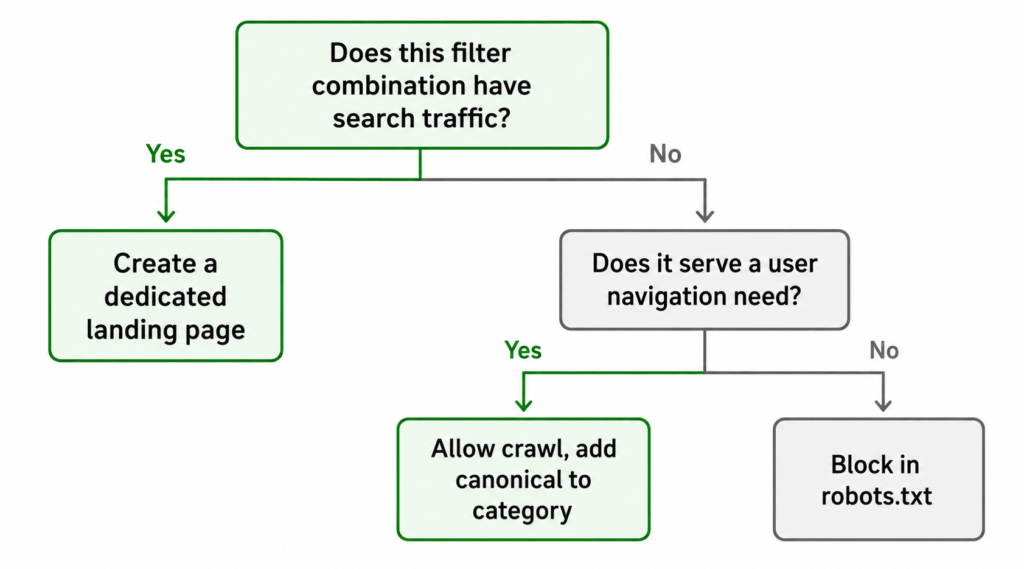
There’s no single fix. The right approach depends on your store’s size, which filters you use, and whether any filter combinations represent genuinely valuable landing pages. Here’s the decision framework we apply in audits:
Step 1: Audit What’s Actually Being Crawled and Indexed
Before changing anything, understand the current state:
- Open GSC → Coverage → “Crawled — currently not indexed” and “Valid” tabs
- Filter results by URL pattern to identify how many contain query parameters
- Run a Screaming Frog crawl with query parameter crawling enabled to see the full scope
- Check your sitemap for filter URL inclusion
This gives you a baseline — how many URLs exist, how many are indexed, and which ones (if any) have real search traffic.
Step 2: Block Crawling of Zero-Value Combinations via robots.txt
For filter parameters that produce no SEO value, use robots.txt to block crawling entirely. This is the most efficient solution — Google never processes these URLs, so they consume zero crawl budget.
| User-agent: *Disallow: /*?filter_color=Disallow: /*?filter_size=Disallow: /*?add-to-cart=Disallow: /*?min_price= |
| ⚠ Be careful with robots.txt blocking. If a filter combination has genuine search demand — e.g. “black leather sofas” — blocking it means Google can never rank that page. Audit traffic before blocking. |
Step 3: Set Canonical Tags Correctly on Filter Pages You Allow to Be Crawled
For filter combinations you don’t want indexed but don’t want to block entirely (e.g. for user experience reasons), add a canonical tag pointing to the base category page:
| <link rel=”canonical” href=”https://yourstore.com/category/shoes/” /> |
This tells Google the base category is the authoritative version. The filter page remains accessible to users, but its signals consolidate to the category page rather than fragmenting.
Check that your canonical implementation is consistent. The most common mistake is canonicals pointing to /shop/ rather than the specific category — this consolidates signals to your homepage shop archive, not the relevant category.
Step 4: Clean Your XML Sitemap
Audit your sitemap for filter URLs and remove them. If you’re using Yoast SEO or Rank Math, check the sitemap exclusion settings. Both plugins should exclude dynamic query parameters by default, but this configuration is often changed or overridden during theme updates.
A sitemap should only contain URLs you actively want Google to index. Filter combinations are almost never on that list.
Step 5: Consider Dedicated Landing Pages for High-Volume Filter Combinations
If GSC shows that certain filter combinations receive real search traffic — “black leather sofas under £500”, “waterproof running shoes for women” — these deserve proper landing pages, not filter URLs. A dedicated page with a targeted H1, product grid, and category copy will outperform a filter URL every time.
This is where filter management transitions from a technical cleanup task to an organic growth opportunity. Filter URLs reveal what your customers are searching for. Those with real volume are candidates for new pages.
What to Do If You’ve Already Been Penalised by This
If you’ve had thousands of filter pages indexed for months or years, fixing the technical configuration is necessary but not sufficient. Google may have already formed a view of your site’s quality based on what it found.
After implementing the fixes above:
- Request recrawl of your core category pages via GSC URL Inspection
- Submit an updated sitemap with filter URLs removed
- Monitor Coverage report over the following 4–8 weeks for a reduction in “Crawled — not indexed” pages
- Track ranking changes on your core category pages — improvements may be delayed by 2–4 crawl cycles
Don’t expect immediate results. Crawl budget changes take time to propagate. But the trajectory should be clear within 6–10 weeks of implementation.
| “Crawl budget fixes are among the highest-leverage technical SEO interventions for large WooCommerce stores. They don’t produce overnight ranking jumps, but they unblock a compounding problem that suppresses everything else.” |
FAQ
Does this affect small WooCommerce stores too?
It depends on how many filters and products you have. A store with 50 products and 3 filter types might generate a few hundred filter URLs — manageable. A store with 1,000+ products and 8–10 filter types can generate tens of thousands. The problem scales with catalogue size and filter complexity.
Will blocking filter URLs in robots.txt hurt user experience?
No. robots.txt only affects crawling by search engines — users can still access filtered views normally. The only impact is on how Google processes those URLs, which is exactly what you want to control.
I’m using Yoast SEO. Doesn’t it handle this automatically?
Yoast handles some aspects — like removing filter URLs from the sitemap — but it doesn’t automatically block filter URL crawling via robots.txt or ensure canonical tags are correctly configured in all cases. Manual configuration and a crawl audit are still necessary.
How do I know which filter combinations have real search traffic?
Check GSC → Performance → Pages, and filter for URLs containing your filter parameter strings (e.g. “filter_color”). Sort by clicks. Any filter URL with meaningful click data is a candidate for a dedicated landing page. Anything with zero clicks over 6+ months can be safely blocked or canonicalised.
Can WooCommerce filter pages ever be good for SEO?
Yes — when they represent real user demand. A filter combination for “red party dresses under £50” might be exactly what a user searches for. The question is whether the search volume justifies a dedicated page or whether the filter URL is sufficient. In most cases, a proper landing page with targeted copy outperforms a filter URL for competitive queries.