
How to Do an Ecommerce SEO Audit Yourself, and What to Do With What You Find

An SEO audit sounds complicated. In practice, it is a structured process of checking your store against a list of known ranking factors — finding what is working, what is broken, and what is missing.
You do not need to hire an agency to run a basic audit. You need a methodology, the right tools, and enough time to work through each dimension systematically. This guide gives you that.
We will cover seven audit dimensions: crawlability, indexation, on-page signals, site speed, internal linking, backlinks, and platform-specific issues. At the end, we will talk about how to prioritise what you find — because a list of 50 issues is only useful if you know which 5 to fix first.
| Note: This guide covers what to check and why. Platform-specific issues — particularly around Shopify, WooCommerce, and BigCommerce — have dedicated articles with deeper technical detail. |
Tools You Need
You can run most of this audit with free tools. A few paid tools make certain steps faster.
| Tool | Cost | What it covers |
| Google Search Console | Free | Indexation status, crawl errors, Core Web Vitals, search performance, sitemap issues |
| Google PageSpeed Insights | Free | Page speed, Core Web Vitals, mobile performance |
| Screaming Frog SEO Spider | Free up to 500 URLs / £149/yr | Full site crawl, title tags, meta, H-tags, canonicals, redirects, broken links |
| Ahrefs Webmaster Tools | Free | Backlink profile, referring domains, broken backlinks |
| Chrome DevTools | Free | JS rendering check, robots.txt inspection, individual page analysis |
| Ahrefs / Semrush | Paid | Keyword rankings, competitor analysis, full backlink data |
Step 1 — Crawlability
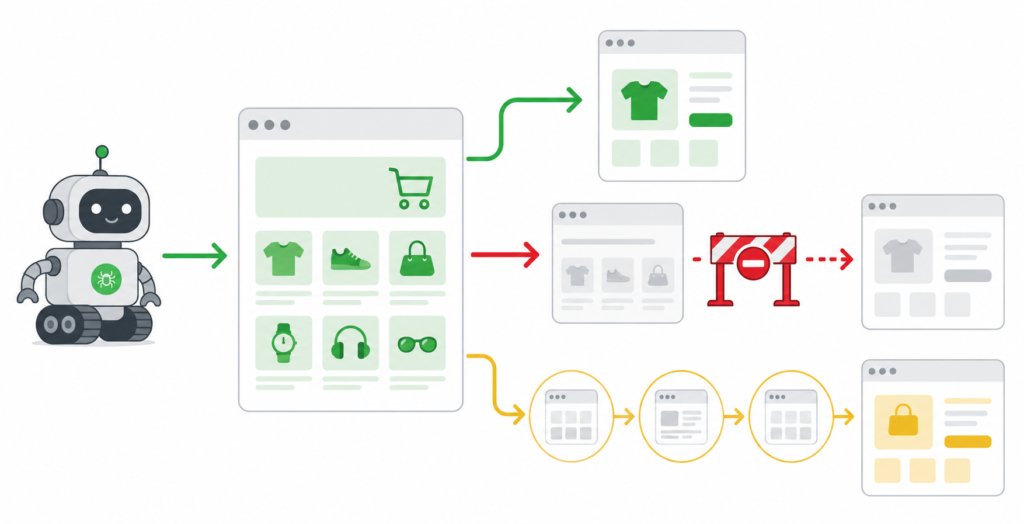
Before Google can rank your pages, it needs to crawl them. Crawlability issues mean pages that are inaccessible, blocked, or deprioritised by Google’s crawler. This is the foundation — if crawling is broken, nothing else matters.
| Check | Tool | What to look for | |
| ☐ | Check robots.txt for accidental blocks | Chrome DevTools or yoursite.com/robots.txt | No Disallow rules on /products/, /categories/, /collections/, or other indexable content |
| ☐ | Identify redirect chains | Screaming Frog → Reports → Redirect Chains | Any chain of 2+ hops — update to direct redirect |
| ☐ | Find broken internal links | Screaming Frog → Response Codes → 4xx | All internal links should resolve to 200 status |
| ☐ | Check XML sitemap | GSC → Sitemaps | Sitemap submitted, no errors, no non-indexable URLs included |
| ☐ | Review crawl stats | GSC → Settings → Crawl Stats | Look for unusual drops in crawl rate or spikes in crawl errors |
Step 2 — Indexation
A page being crawled does not mean it is indexed. Google makes independent decisions about whether crawled pages are worth adding to its index. Indexation issues are often the most impactful finding in an ecommerce audit — and the most frequently overlooked.
| Check | Tool | What to look for | |
| ☐ | Check Coverage report | GSC → Indexing → Pages | Review “Not indexed” reasons — especially “Crawled — currently not indexed” and “Duplicate, Google chose different canonical” |
| ☐ | Find noindex tags on important pages | Screaming Frog → Directives → Noindex | Confirm no product or category pages are accidentally noindexed |
| ☐ | Check canonical tags | Screaming Frog → Canonicals | All canonical tags should point to the correct authoritative URL — not to a different page, not to itself incorrectly |
| ☐ | Identify thin or duplicate content | Screaming Frog → Content → Near Duplicates | Pages with identical or very similar content competing for the same ranking |
| ☐ | Review sitemap vs index | GSC → Sitemaps → Submitted URLs vs Indexed | Large gaps between submitted and indexed URLs indicate indexation problems |
| “Crawled — currently not indexed” is one of the most important signals in GSC. It means Google found your page, chose not to index it, and will keep reconsidering. The most common causes: thin content, duplicate content, and — on WooCommerce and BigCommerce — filter pages consuming crawl budget without providing indexable value.” |
Step 3 — On-Page Signals
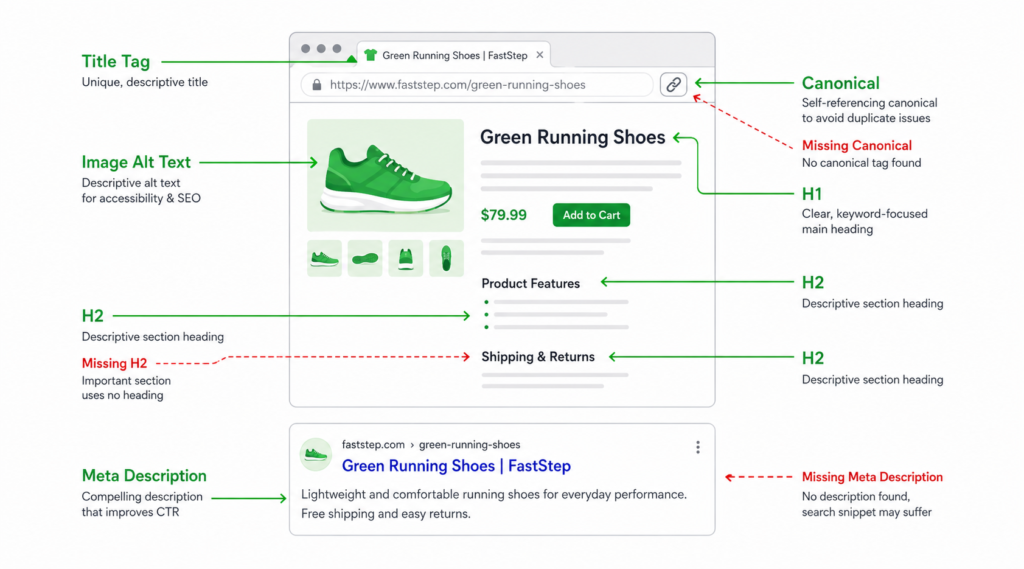
On-page signals are the metadata and structural elements that tell Google what each page is about. On an ecommerce store with hundreds or thousands of pages, on-page issues are almost always systematic — the same mistake repeated across every product or category page.
| Check | Tool | What to look for | |
| ☐ | Check title tag coverage and length | Screaming Frog → Page Titles | Every page has a unique title tag. Optimal length: 50-60 characters. No duplicates. |
| ☐ | Check meta description coverage | Screaming Frog → Meta Description | Every priority page has a meta description. Optimal length: 140-155 characters. |
| ☐ | Check H1 tags | Screaming Frog → H1 | Every page has exactly one H1. H1 should match the page’s primary keyword intent. |
| ☐ | Check H2 structure | Screaming Frog → H2 | Category and product pages have H2 subheadings. Missing H2s = thin structure signal. |
| ☐ | Check image alt text | Screaming Frog → Images → Missing Alt Text | All product images have descriptive alt text. Not keyword-stuffed — genuinely descriptive. |
| ☐ | Check schema markup | Google Rich Results Test | Product schema on product pages. BreadcrumbList on category pages. FAQ schema where applicable. |
Step 4 — Site Speed and Core Web Vitals
Google uses Core Web Vitals as a ranking signal. More importantly, slow pages lose customers — research consistently shows conversion rates drop as page load time increases. For ecommerce, speed is a revenue issue, not just an SEO issue.
| Check | Tool | What to look for | |
| ☐ | Run PageSpeed Insights on key pages | Google PageSpeed Insights | Test homepage, top category pages, and a sample of product pages. Target: mobile score >= 70, desktop >= 85. |
| ☐ | Check LCP (Largest Contentful Paint) | PageSpeed Insights → Diagnostics | LCP should be under 2.5 seconds on mobile. Main culprit: unoptimised hero images. |
| ☐ | Check CLS (Cumulative Layout Shift) | PageSpeed Insights → Diagnostics | CLS should be under 0.1. Common cause: images without defined dimensions, late-loading ads. |
| ☐ | Check image formats and sizes | Screaming Frog → Images → Over X KB | Convert images to WebP. Compress all images over 100KB. Add width and height attributes. |
| ☐ | Review Core Web Vitals in GSC | GSC → Experience → Core Web Vitals | Check which URLs are flagged as Poor or Needs Improvement. Prioritise high-traffic pages. |
| Note: Mobile performance is the one that matters for rankings — Google indexes the mobile version of your site. Run PageSpeed on mobile, not desktop. A score of 90+ on desktop and 45 on mobile is still a problem. |
Step 5 — Internal Linking
Internal links distribute authority across your site and tell Google which pages are most important. On ecommerce stores, internal linking is frequently broken in predictable ways: category pages orphaned from the homepage, product pages that only link upward but never across, and blog content that never links to commercial pages.
| Check | Tool | What to look for | |
| ☐ | Find orphaned pages | Screaming Frog → Site Structure → Orphaned URLs (requires connecting GSC) | Pages with no internal links pointing to them — invisible to Google except via sitemap |
| ☐ | Check crawl depth | Screaming Frog → Crawl Depth | Important category and product pages should be reachable within 3 clicks from homepage |
| ☐ | Check anchor text distribution | Screaming Frog → Inlinks → Anchor | Avoid over-optimised exact-match anchor text on internal links — keep it natural |
| ☐ | Check broken internal links | Screaming Frog → Response Codes → 4xx | Any internal link pointing to a 404 is wasting link equity and creating bad UX |
| ☐ | Review blog → commercial linking | Manual review | Does every blog post link to at least one relevant service or category page? This is commonly missing. |
Step 6 — Backlink Profile
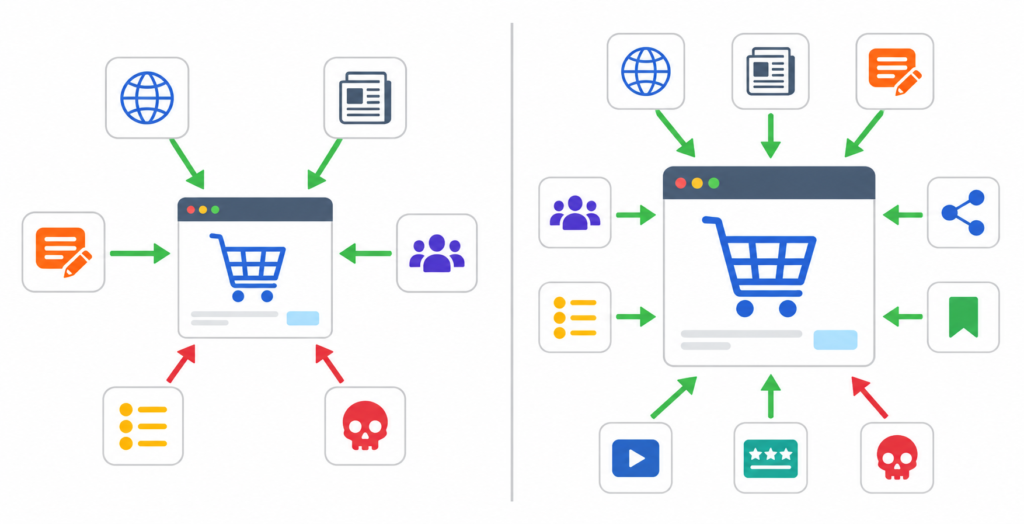
Backlinks remain one of the strongest ranking signals. The goal of a backlink audit is not to count links — it is to understand the quality and diversity of your referring domain profile, identify toxic links that may be suppressing rankings, and find gaps vs competitors.
| Check | Tool | What to look for | |
| ☐ | Check referring domain count | Ahrefs Webmaster Tools or Semrush | How many unique domains link to you? Compare vs top 3-5 competitors. |
| ☐ | Identify toxic or spammy links | Ahrefs → Backlinks → Spam Score or manual review | Links from link farms, irrelevant directories, or sites with no real traffic |
| ☐ | Check anchor text distribution | Ahrefs → Anchors | Healthy profile: 40-60% branded, 20-30% partial match, 10-15% generic, minimal exact match |
| ☐ | Find broken backlinks | Ahrefs → Broken Backlinks | External sites linking to your 404 pages — 301 redirect to recover the equity |
| ☐ | Compare vs competitors | Ahrefs → Link Intersect | Which referring domains link to competitors but not to you — link-building opportunities |
Step 7 — Platform-Specific Issues
Each ecommerce platform has its own structural SEO issues that a generic audit template will miss. This step requires knowing what to look for on your specific platform.
Shopify
- Duplicate product URLs from /products/ and /collections/products/ paths — check that canonicals consistently point to /products/ Full guide →
- robots.txt blocking app-generated pages that should be indexed
- Collection pages with no text content — check your top collections for word count under 100 words
WooCommerce
- Filter pages consuming crawl budget — check GSC Coverage for “Crawled — not indexed” URLs containing filter parameters Full guide →
- Plugin conflicts affecting canonical tags or meta output — check with Screaming Frog what canonical is actually being served vs what your plugin settings say
- Product variation duplication — check if colour or size variants generate separate indexable URLs
BigCommerce
- Faceted navigation generating thousands of filter URL combinations — check crawl budget allocation in GSC Full guide →
- XML sitemap including non-canonical and low-value URLs — review sitemap output against GSC Coverage
- Redirect chains from product URL changes — check Screaming Frog Redirect Chains report
What to Do With What You Find
A completed audit will produce a list of issues. The list will be long. The next step is prioritisation — because trying to fix everything at once produces nothing.
| IMAGE 5: Prioritisation MatrixAI Prompt: Clean flat 2×2 matrix (impact vs effort). Top-left quadrant (high impact, low effort) = “Fix First” labelled green. Top-right (high impact, high effort) = “Plan Carefully” labelled yellow. Bottom-left (low impact, low effort) = “Do When Possible” labelled grey. Bottom-right (low impact, high effort) = “Deprioritise” labelled red. White background, clean minimal design.Size: 800x600pxPlacement: Inline, after “What to Do With What You Find” intro.Alt text: SEO audit prioritisation matrix: impact vs effort for ecommerce SEO fixes |
Fix first — high impact, low effort
- Broken internal links — fix takes minutes, removes crawl waste and bad UX
- Missing title tags and meta descriptions — fill gaps on top-traffic pages first
- robots.txt errors blocking indexable content — immediate crawl impact
- GSC-reported 4xx errors on linked pages — direct equity loss
- Sitemap cleanup — remove non-indexable URLs, resubmit
Plan carefully — high impact, higher effort
- Canonical strategy for filter pages (WooCommerce / BigCommerce) — complex but highest-ROI technical fix
- Category page content — requires writing, but directly improves ranking potential on commercial pages
- Schema markup implementation — needs development, but opens rich result opportunities
- Core Web Vitals improvement — often requires image optimisation and dev work
Deprioritise for now
- Fixing every thin page on a 10,000-SKU catalogue — focus on top-traffic pages only
- Disavowing backlinks unless there is clear evidence of a manual penalty
- Changing URL structure of established pages — risk vs reward rarely justifies it
| “An audit is not a one-time event. The most useful thing you can do after completing your first audit is schedule the next one — in 3-6 months. SEO issues accumulate. Theme updates, new plugins, catalogue expansions — all of them introduce new problems.” |
FAQ
How long does an ecommerce SEO audit take?
A thorough audit of a store with 500-2,000 products takes 8-15 hours if you are doing it manually. A larger store with 5,000+ SKUs can take 20-30 hours. Tools like Screaming Frog automate the crawl stage, but interpreting the data and cross-referencing findings still requires time and judgment.
Can I audit my store with free tools only?
Yes — Google Search Console, Google PageSpeed Insights, and the free version of Screaming Frog (up to 500 URLs) cover the majority of technical and on-page checks. For backlink analysis, Ahrefs Webmaster Tools offers a free tier that shows your own backlink profile. You will miss competitor backlink analysis without a paid tool, but the core audit is achievable for free.
What is the single most important thing to check?
The Coverage report in Google Search Console. Specifically, the “Crawled — currently not indexed” count. If this number is large relative to your total page count — more than 20-30% — you have a structural problem that is suppressing your entire site’s organic performance. Fix this before anything else.
Should I fix everything the audit finds?
No. Prioritise by impact. A list of 80 issues does not mean 80 things to fix — it means 5-10 high-impact items to fix immediately, 15-20 to plan into your next development cycle, and the rest to monitor. Trying to fix everything at once leads to nothing getting done.
When should I hire an agency instead of doing it myself?
When the issues you find are beyond your technical capacity to fix, when your store is large enough that a manual audit takes more time than it saves, or when you have already run an audit and implemented fixes but rankings are not moving. A professional ecommerce SEO audit goes deeper than a DIY audit — particularly on platform-specific issues and competitive analysis.